







Game Systems
Community > Friends
You can add the people you want to enjoy Dragon Ball Online with as Friends.
Characters registered as Friends are added to your Friends list, where you can see whether they are online, send them letters and use various other features.
Adding or removing a Friend does not require the other player's consent.
Even if you are on the other player's block list, adding them as a Friend works normally, but they will be shown as offline.
Adding Friends
Friends can be added as follows.
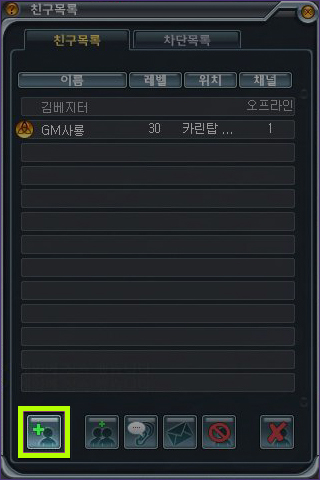
 Adding from the Friends list
- Click the [Add] button at the bottom of the Friends list.
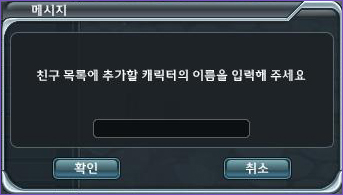
- When the [Message] pop-up appears, enter the name of the Friend to add and click [OK].
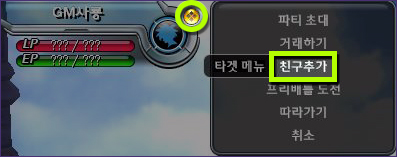
 Adding a selected target
- Select the target, click the menu in the top right of the character info window, then click the [Add Friend] button.
Removing Friends
Friends can be removed as follows.
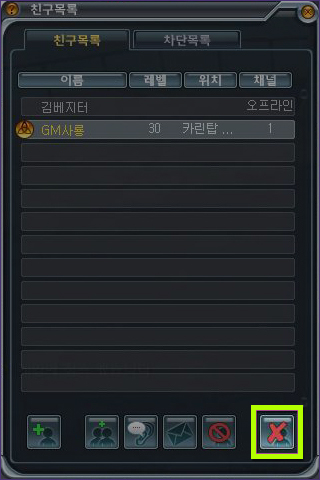
Select the target in the Friends list and click the [Delete] button at the far right of the bottom row.
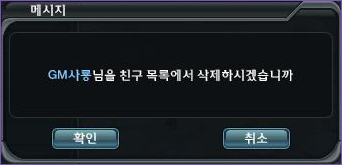
When the [Message] pop-up appears, click [OK] to remove the Friend.
Friend Notifications
When a player registered as your Friend logs in, you are notified in 2 ways.
A system message in the center of the screen announces the login.

- Displays "[Friend name] has entered the game."
The Popo icon at the bottom right of the screen announces the login.
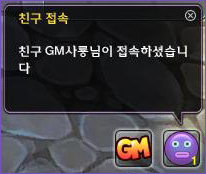
- A [Friend Login] pop-up appears with the message "[Friend name] has logged in."
Friends List
Open the Friends list by clicking the main menu at the bottom right of the game screen and selecting [Friends List], or with the [L] shortcut key.
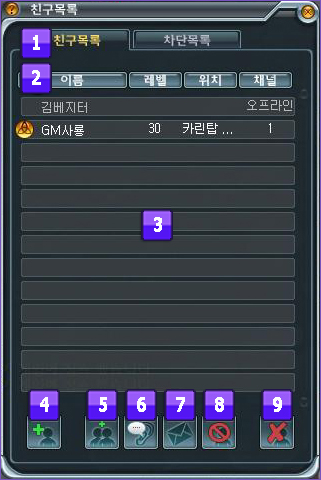
<Friends list>
| No. | Name | Description |
|---|---|---|
| 1 | Tabs | Switch between the Friends list and the block list. |
| 2 | Headings | The fields used to show your Friends' information. |
| 3 | Friends list | Shows brief information about your registered Friends. |
| 4 | Add | Used to register a new Friend. |
| 5 | Invite | Used to invite a Friend to your Party. |
| 6 | Whisper | Used to send a whisper to a Friend. |
| 7 | Send Mail | Used to send Mail to a Friend. |
| 8 | Move to block list | Used to move a Friend to the block list. |
| 9 | Delete Friend | Used to remove a registered Friend from the Friends list. |
Block List
If there is a character you want to block, you can add them to your block list, and you can also remove characters from it.
The following requests from characters on your block list are all refused:
Trade requests
Party invitations
 Whispers
 Free Battle challenges
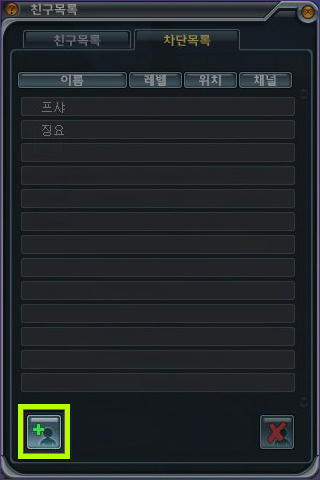
You can block a character as follows.
Click the [Add] button at the bottom of the block list.
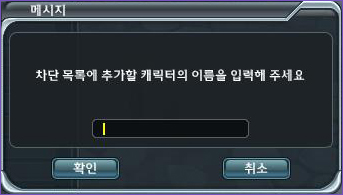
When the [Message] pop-up appears, enter the name of the character to block and click [OK] to block that character.
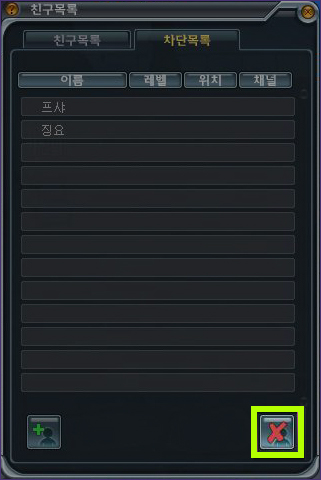
To remove a blocked character from the block list, do the following.
Select the target in the block list and click the [Delete] button at the far right of the bottom row.
When the [Message] pop-up appears, click [OK].
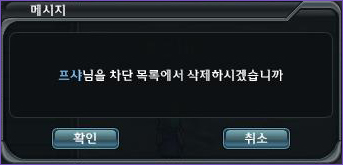
* Once a character is removed from the block list, requests from that character are no longer blocked.