







Game Systems
Community > Chat
To talk with other players, press the [Enter] key on your keyboard to switch to chat mode.
Once the chat window is active, type what you want to say and press [Enter] again.
Chat appears in the chat window at the bottom left of the screen, and [General], [Whisper], [Party], [Guild] and [Shout] chat are available.
How to Chat
Use the commands below in the chat window to chat.
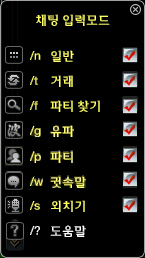
<Chat input mode>
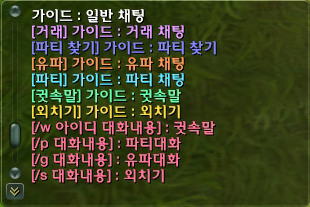
<Text colors by chat type>
 White -> General chat
 Light purple -> Trade chat
 Purple -> Party search chat
 Orange -> Guild chat
 Sky blue -> Party chat
 Green -> Whisper
 Yellow -> Shout
 Pink -> System messages
Guild Master Chat
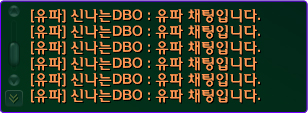
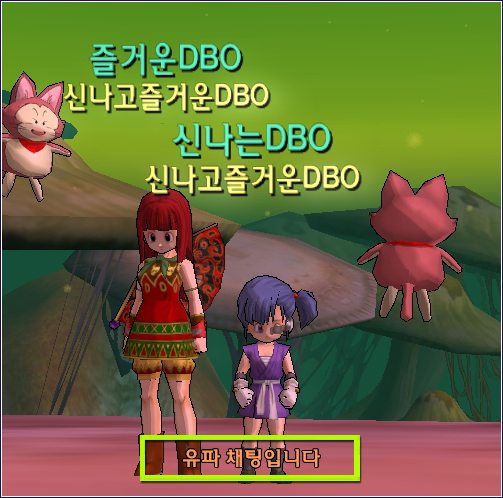
<Guild Master chat display>
This feature can only be used by the Guild Master of a Guild; enter chat with the shortcut </C>.
When entered, the Guild Master's message is shown in the Guild window and at the bottom center of the screen.
Party Leader Chat
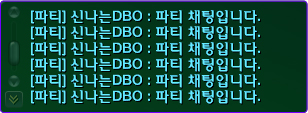
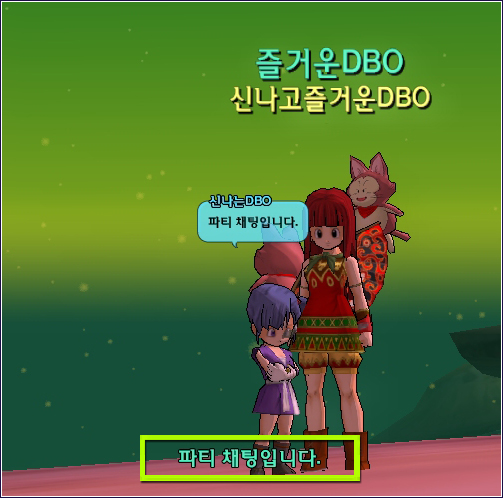
<Party leader chat display>
This feature can only be used by the Party leader of a Party; enter chat with the shortcut </Z>.
When entered, the Party leader's message is shown in the Party window and at the bottom center of the screen.
Chat Window Display Settings
The chat window display can be configured as follows.
Go to [Options] -> [Game] tab -> [Chat] tab and set how you want the chat window to be displayed.
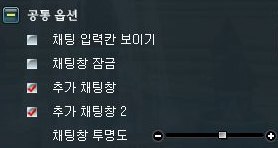
<Common options>
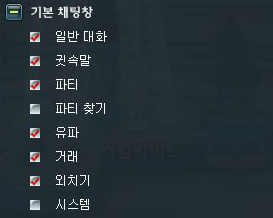
<Main chat window options>
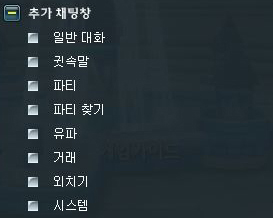
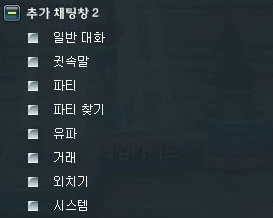
<Additional chat window options>
After setting the chat window display, click the [Apply] button to save the change.