






Game Systems
Community > Parties
The Party is the most basic form of communication built around combat. It provides a way for classes to make up for each other's weaknesses, a few bonus effects while in a Party, and easier communication.
Creating a Party
Any character not already in a Party can name a Party through the interface and create a new one.
The character who creates the Party becomes its leader, and a Party can have up to 5 members.
A Party can be created as follows.
 Click the Party menu on the middle left of the game screen and select [Create Party].
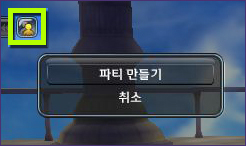
<Party menu>
 When the [Message] pop-up appears, enter the Party name you want and click [OK] to create the Party.
The allowed length of a Party name is as follows:
| Input language | Characters |
|---|---|
| Korean | 2-8 |
| English | 4-16 |
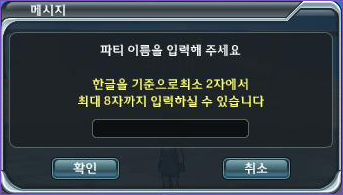
<Party creation message pop-up>
The Party menu functions are as follows:
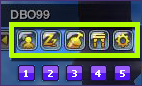
| No. | Description |
|---|---|
| 1 | Party menu: Invite to Party / Leave Party |
| 2 | Zenny distribution: Finder first / Split evenly |
| 3 | Item distribution: Finder first / In turn / In turn by grade |
| 4 | Party dungeon reset/difficulty: Reset / Normal / Hard / Very Hard |
| 5 | Party info display settings: Show / Hide Party members Show / Hide Party member buffs |
If you don't enter a Party name when creating a Party, the Party will not be created.
Party names may be duplicated.
Joining a Party
Only the Party leader can add regular players to the Party.
When the Party has 5 members, no more invitations can be sent, and you cannot invite a player who is already in another Party.
Party Invitations
Besides creating a Party, you can also invite another player to a Party while you are not in one. In this case, if the other player accepts the invitation, a Party is created automatically with a randomly chosen name.
There are 3 ways to send an invitation, as follows.
Select the target and click the [Invite to Party] button in the Party menu.
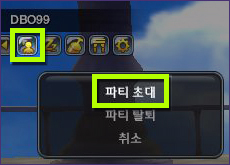
<Invite to Party in the Party menu>
Select the target, click the menu in the top right of the character info window, then click the [Invite to Party] button.
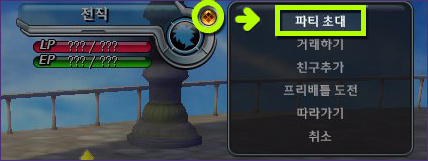
<Character info window menu>
 Select the target in your Friends list and click the [Invite to Party] button at the bottom.
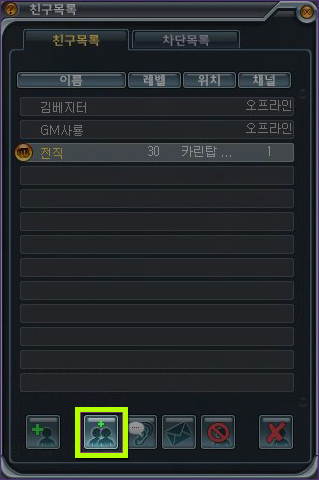
<Friends list>
Leaving a Party
You can leave your Party at any time through the Party info window.
If the Party leader leaves, leadership automatically passes to the next member in order of joining.
You can leave a Party as follows.
Click the [Leave Party] button in the Party menu.
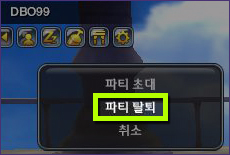
<Leave Party in the Party menu>
When the [Message] window appears, click [OK] to leave the Party.
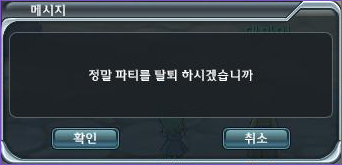
<Leave Party message pop-up>
Persistence
A Party remains as long as at least one of its members is logged in.
Party Leader Permissions
The Party leader has additional permissions beyond those of regular members and represents the Party in all Party-related matters.
Key permissions include adding and removing members, handing over leadership, setting the Zenny distribution method, setting the item distribution method and setting the Party difficulty.
Item distribution
- The distribution order follows the order in which members joined the Party, and it resets when the distribution method is changed.
- Items can be distributed using one of 3 methods.
* The member who picks up the item keeps it.
* Items are handed out in turn, regardless of who picked them up or the item's grade.
* Regardless of who picked them up, items are split into two groups, normal items and superior/rare items, and each group is handed out in its own turn order.
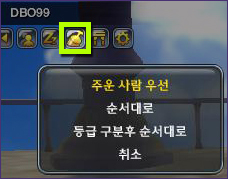
<Item distribution settings in the Party menu>
Zenny distribution
- Zenny can be distributed using one of 2 methods.
* The member who picks up the Zenny keeps it all.
* Regardless of who picked it up, the Zenny is split according to the number of members.
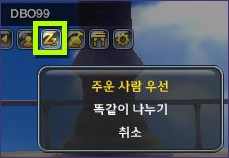
<Zenny distribution settings in the Party menu>