







Beginner's Guide
Interface > Main Interface
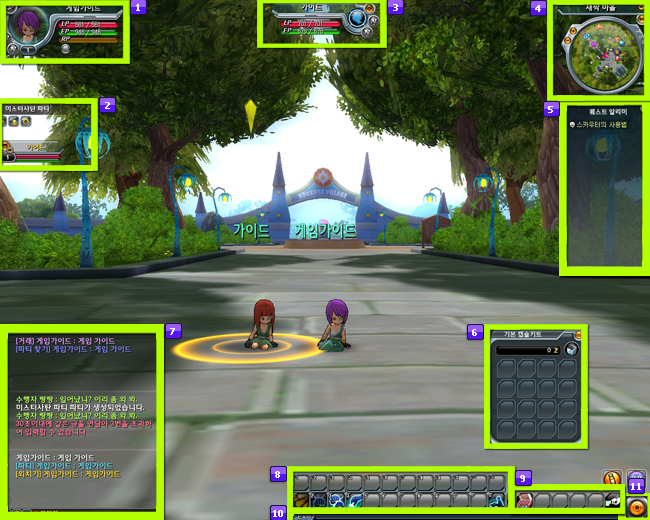
 The character info window shows your character's portrait, name, mailbox, LP, EP, RP, power level, level, buffs and more.
For certain classes, a summon info window showing your summon's information appears below the character info window.
 The Party info window shows the status of your current Party members and Party-related menus.
 The target info window shows different information depending on the type of target, and you can click the [Image] marker to choose from a sub-menu.
 The minimap shows your current area, NPCs, shop locations, your own position, quest information and more.
 The side info window lets you use Time Machine Quest information or the Quest Tracker.
 The inventory shows the items you have obtained and the Zenny you are carrying, and you can discard items using the trash can.
 The chat window is split into a main chat window and an additional chat window, and you can freely change which types of messages are shown in the option settings.
 You can use up to 3 rows of Quick slots.
Register items, skills and more to the Quick slot for easy use.
For certain classes, summon control buttons above the Quick slot let you use your summon's skills or control your summon.
 The Capsule Kit slots hold any additional Scouters and Capsule Kits you obtain.
Up to 4 additional Capsule Kits can be registered.
 The experience gauge shows how much experience you need to level up.
 The main menu buttons let you open various windows, adjust game options and use a range of other menus.