




Beginner's Guide
Interface > Options
You can change graphics, sound, key binding and other options in the game. Open the Options window by clicking the [Options] button in the main menu or pressing the shortcut key [O].
You can also select [Options] from the system menu that opens when you press [ESC].
Graphics Options
Go to Options window -> System -> Graphics.
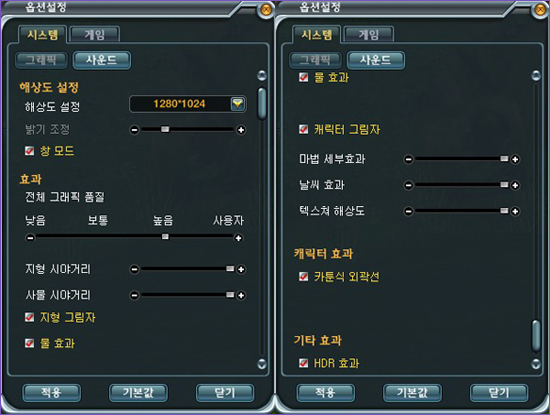
 Resolution: Change the size of the game screen.
 Brightness: Adjust the screen brightness.
(Brightness cannot be adjusted in windowed mode.)
 Windowed mode: Check Windowed mode and click the [Apply] button to play the game in a window.
 Overall graphics quality: Freely change the graphics quality.
 Terrain / object view distance: Set how far terrain and objects are drawn.
 Terrain shadows / water effects / character shadows: Uncheck these to turn off terrain shadows, water effects and character shadows.
 Detailed magic effects / weather effects / texture resolution: Freely change the quality of magic effects, weather effects and texture resolution.
 HDR cartoon outlines: Choose whether characters have outlines.
 HDR effects: Choose the HDR (lighting) effect setting.
Sound Options
Go to Options window -> System -> Sound.
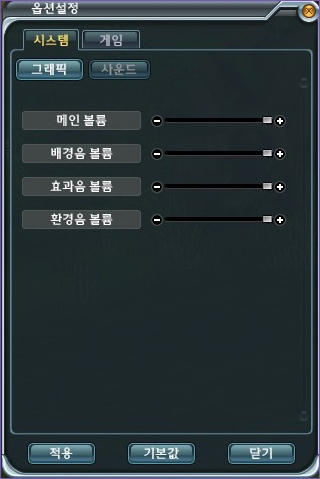
Master volume: Adjust the overall sound volume.
Music volume: Adjust the background music volume.
Effects volume: Adjust the sound effects volume.
Ambient volume: Adjust the ambient sound volume.
Key Binding Options
Go to Options window -> Game -> Controls.
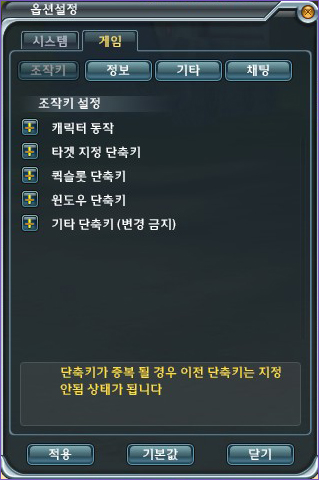
Here you can see the default key bindings.
Brightness: Adjust the screen brightness.
Freely change the shortcut keys for character actions, targeting, Quick slots and windows.
See which shortcut keys cannot be changed.
How to change a shortcut key
- Click the shortcut key you want to change. You can check whether it can be changed in the text field at the bottom of the Options window.
- Press the key you want to use. (You cannot change it to a key that is already in use or that is locked.)
- Click the [Apply] button.
- To restore the original settings, click the [Default] button.
Info Options
Go to Options window -> Game -> Info.
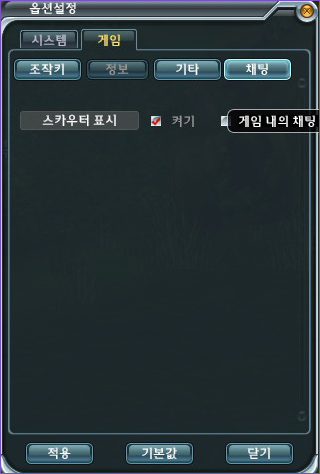
Choose whether Scouters are displayed.
Select Scouter display On to show the Scouters of all characters, including your own.
Select Scouter display Off to hide the Scouters of all characters, including your own.
Other Options
Go to Options window -> Game -> Other.
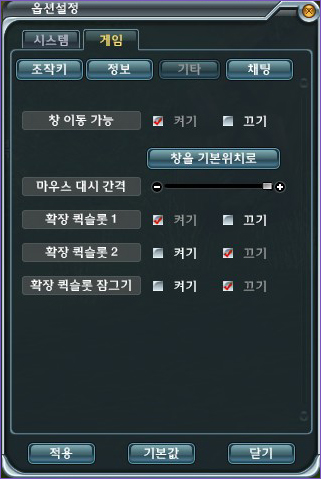
Movable windows
Check On to freely move the various menu windows in the game.
Check Off to lock the menu windows in place.
Reset window positions: Click the [Reset Window Positions] button to move all windows back to their default positions.
Mouse dash interval: Change the double-click speed used for dashing with the mouse.
Extended Quick slots: Expand the Quick slot to up to 3 rows.
Lock extended Quick slots: Lock the icons in your Quick slots so they are not removed or moved by accident.
Chat Options
Go to Options window -> Game -> Chat.
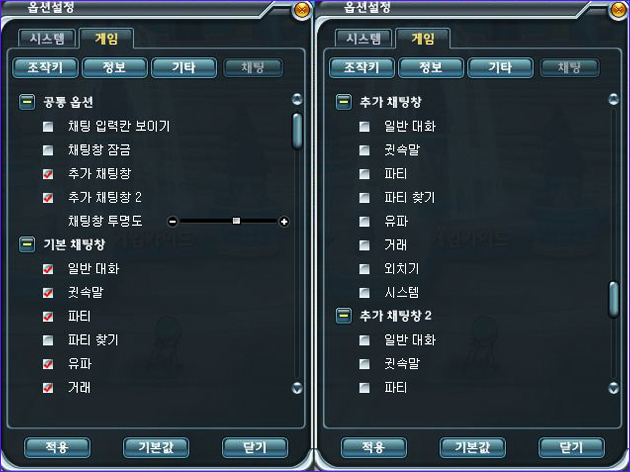
Common options
- Choose whether the chat input box is shown.
- Use the chat window lock to fix the position and size of the chat window.
- Choose whether to use the additional chat window.
- Adjust the transparency of the chat window.
Main chat window options: Choose which messages appear in the main chat window.
Additional chat window options: Choose which messages appear in the additional chat window.